

Complete Guide to Canva AI Video Generator (2026): Features, Pricing, and Honest Review
Contents
As AI technology becomes more mature, we’re seeing an increasing number of AI tools emerging, especially image and video generators. While many of the standalone AI image and video generators are startups, many established companies have also started integrating AI into their existing products to stay ahead of the curve.
Canva is one of them. Canva has long been a popular cloud-based graphic design platform for creating visual content for social media, posters, and other presentations because of its extremely user-friendly interface. Now, it’s also offering AI video generation.
In this guide, we’ll walk you through everything you need to know about Canva’s AI Video Generator in 2026, including its key features, pricing, and an honest review with pros and cons.
Canva AI Video Generator: A Short Introduction
Canva’s AI Video Generator is powered by Google’s Veo-3, the third-generation video model from Google DeepMind. To create a video, simply provide a text prompt describing how you want the video to be, and it will generate a video up to eight seconds long. Unlike many other AI video generators, it also generates audio that’s automatically synced with the video. This makes the final output more engaging compared to one without audio.
It’s easy to get started with the Canva AI Video Generator. You can access it either from the home page:
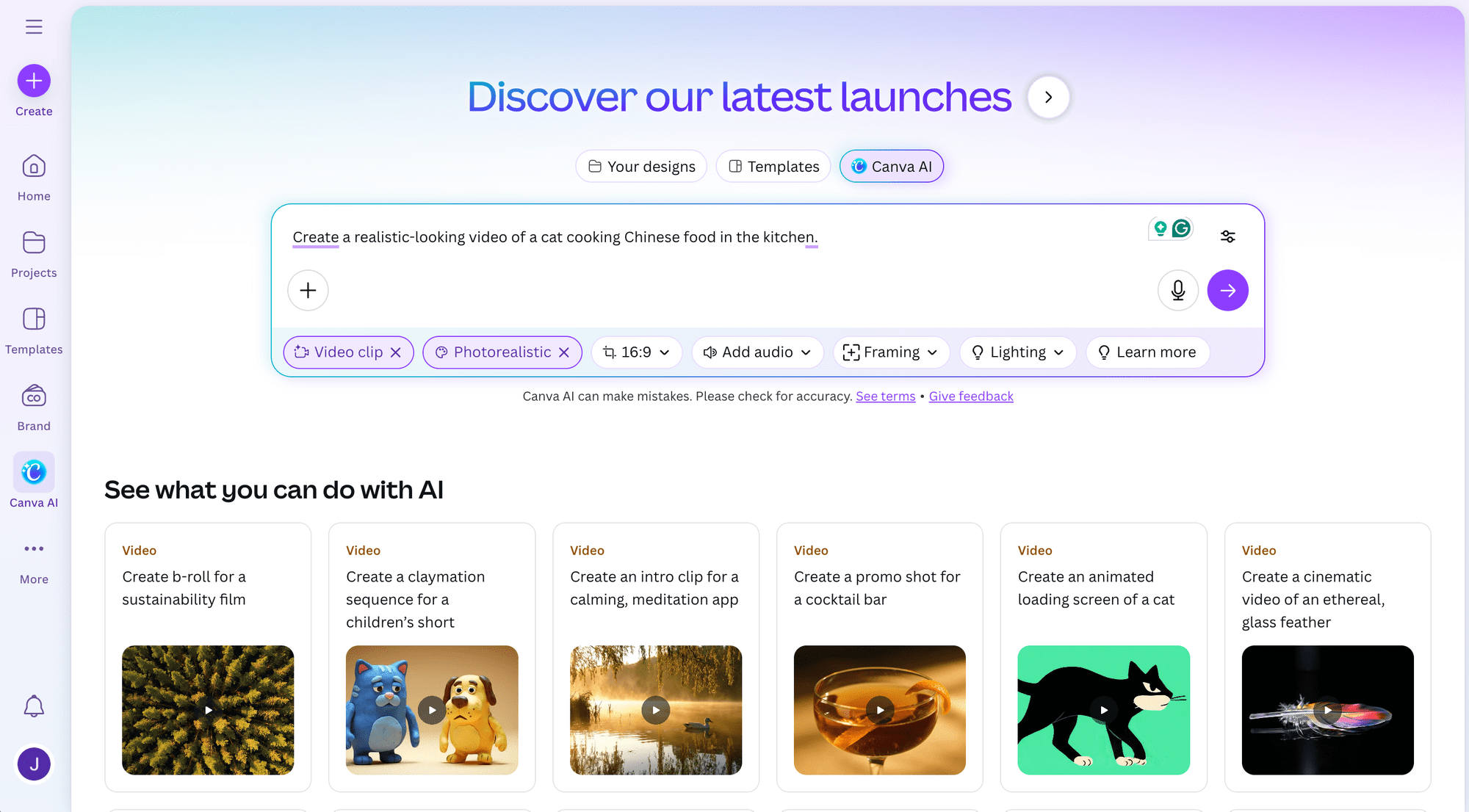
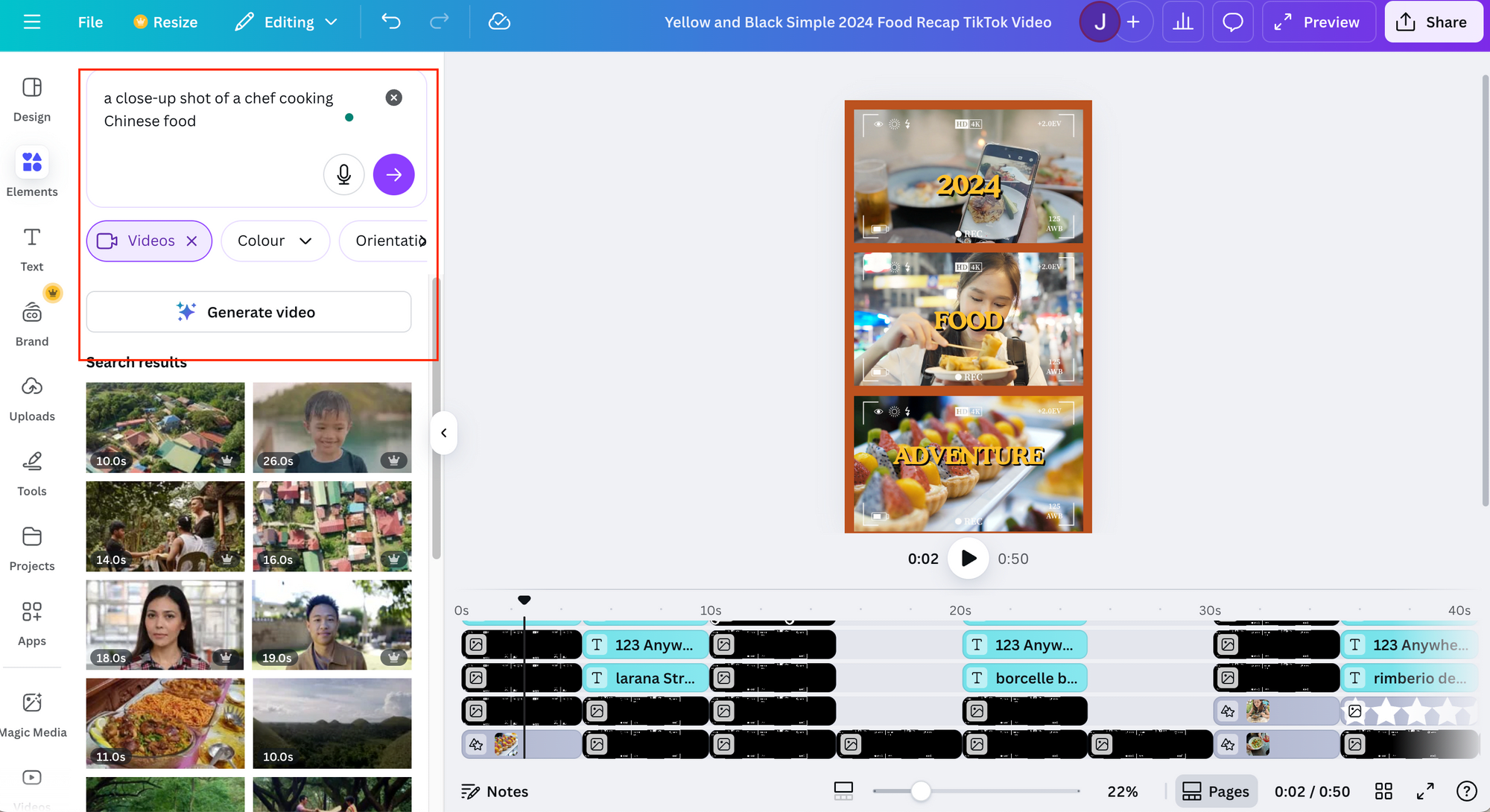
…or from the “Elements” tab in the template editor:
Key Features of Canva AI Video Generator
Canva’s AI Video Generator comes loaded with tools designed to simplify and speed up video creation. Here are the most important features you should know about:
1. Text-to-Video Generation
Text-to-video generation is the main feature of most AI video tools, and the Canva AI Video Generator is no exception. As mentioned earlier, you can access it either from the home page or through the “Elements” tab inside the template editor.
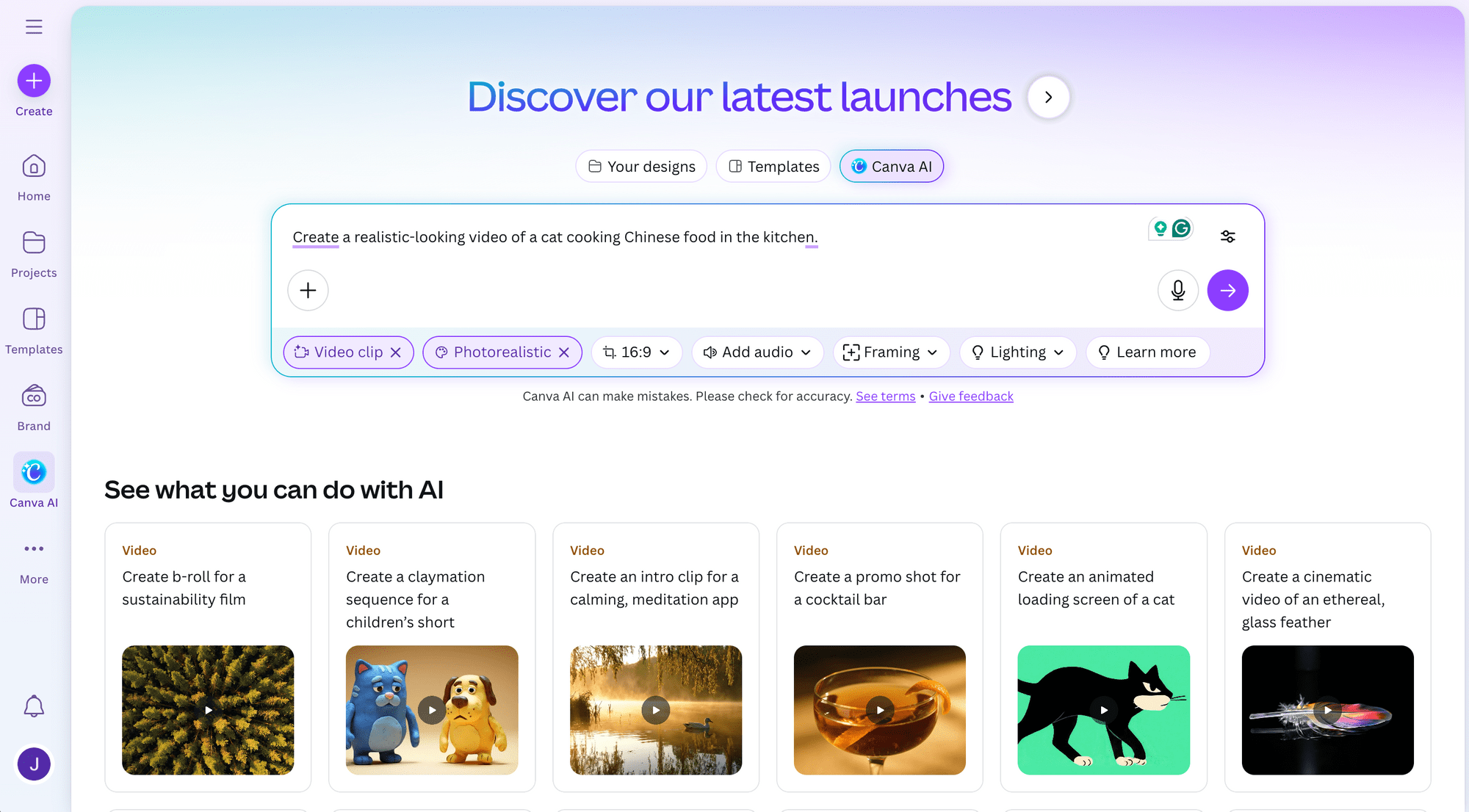
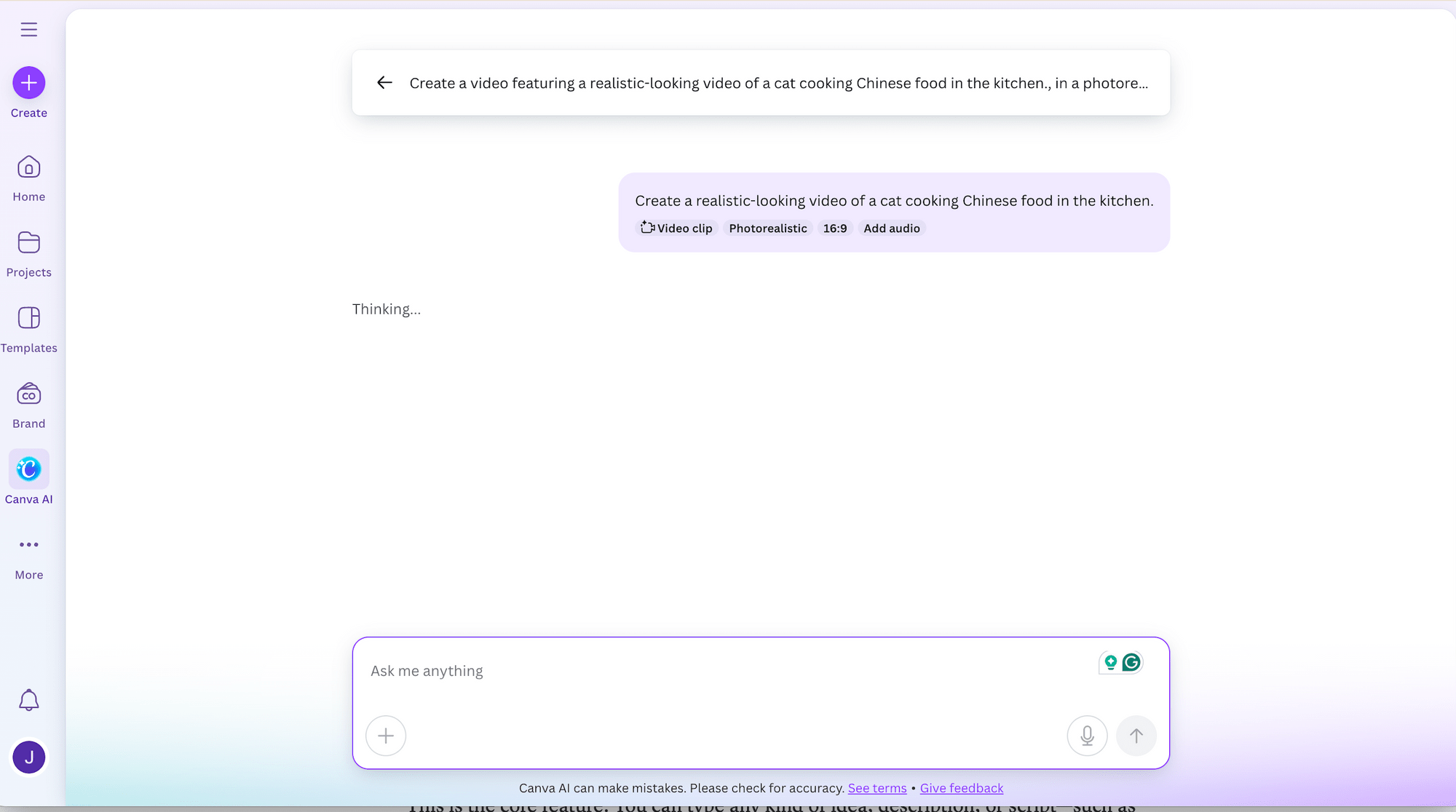
When you generate a video from the home page, Canva opens a chat-style interface where it returns the generated video and lets you continue giving instructions to refine or modify it:
If you access it through the “Elements” tab in the editor, the generated video can be added straight into your template or used to replace an existing clip. This makes it super convenient when you want to update or refine a specific part of your video project using an AI-generated clip:
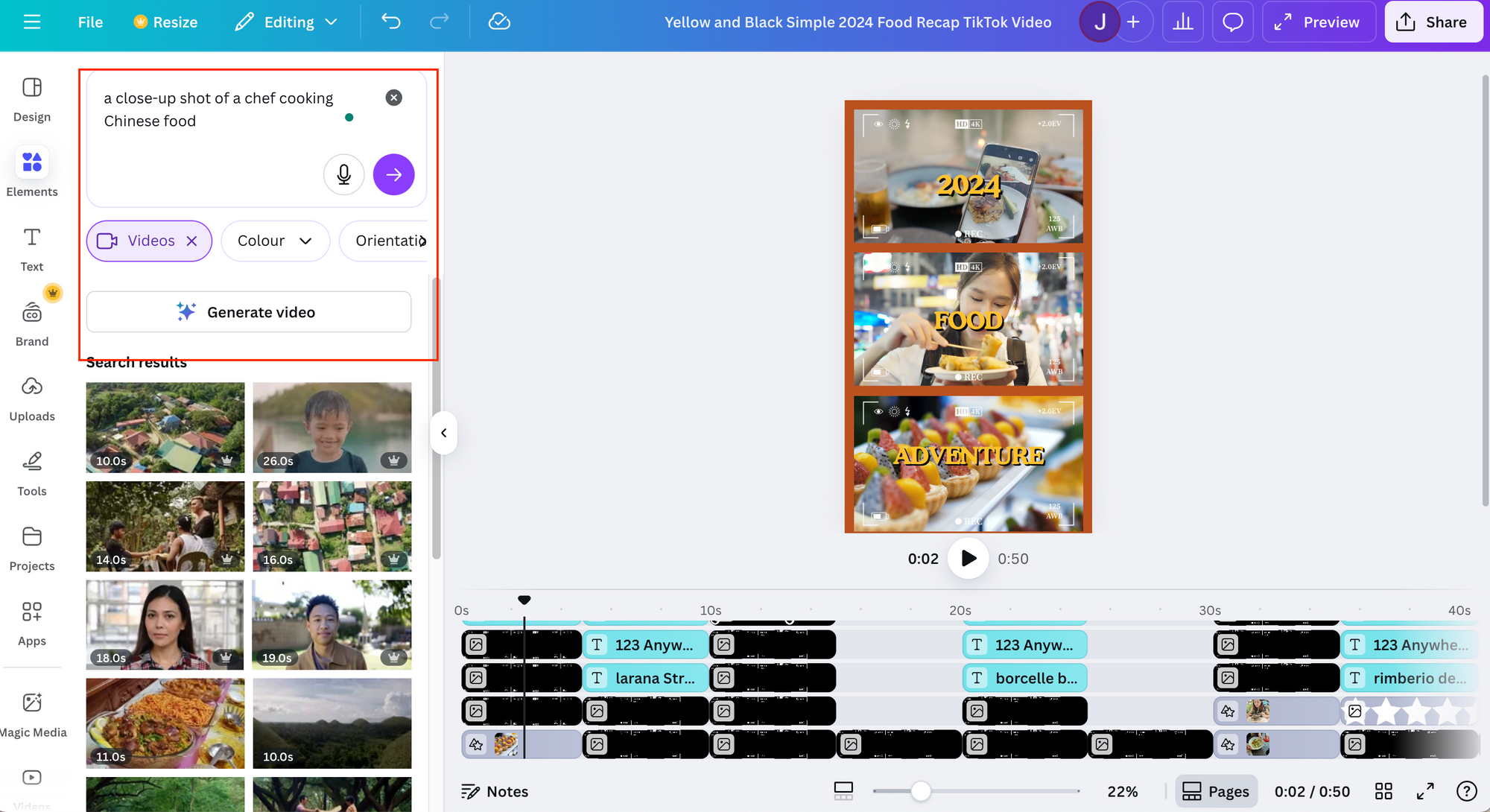
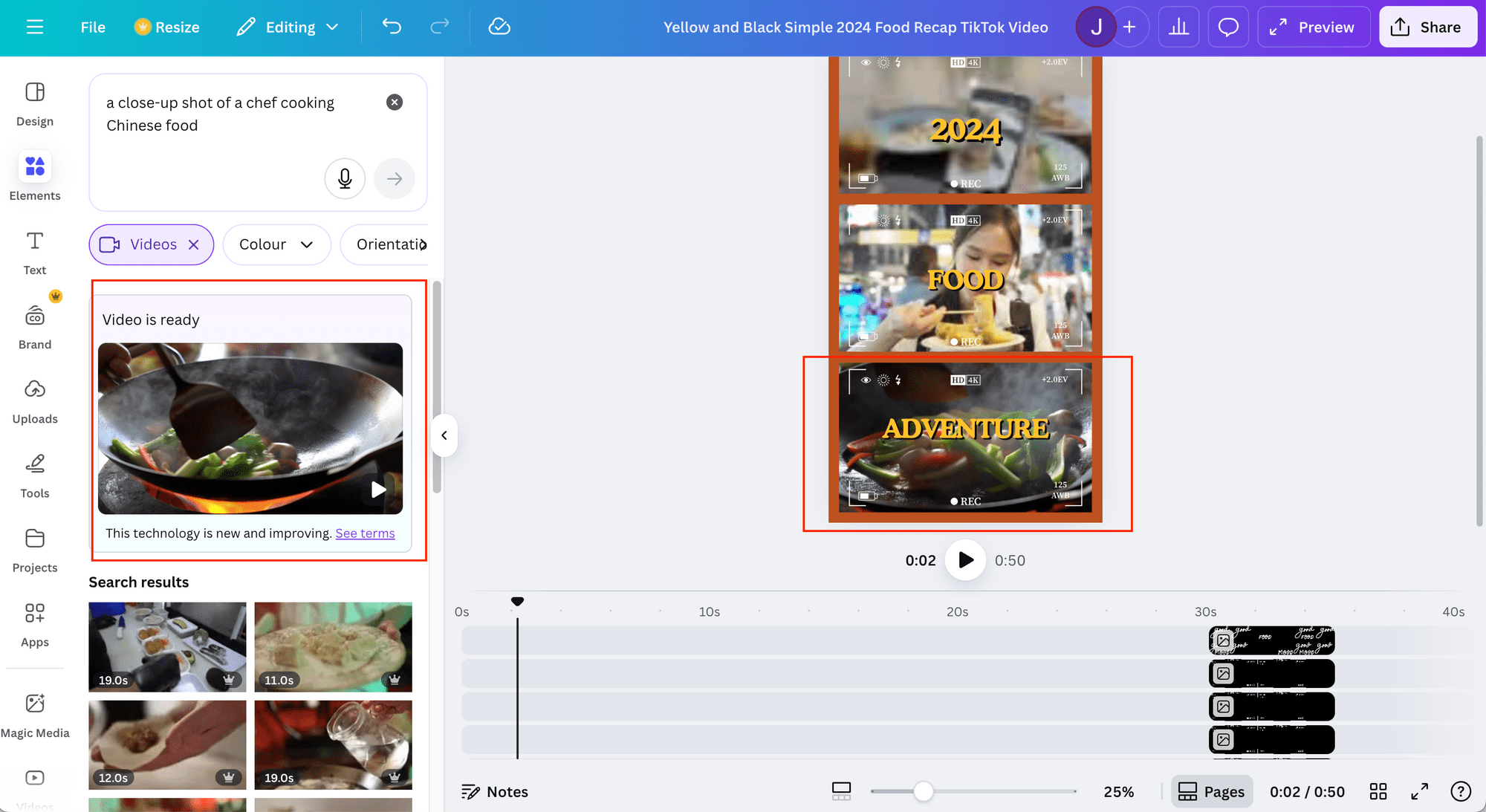
🐱 Cat Memo: The first option includes audio and offers more video settings, making it better for generating main video content. The second option produces a shorter clip, which works better as B-roll for longer videos.
2. Integrated Video Editing Tools
Canva comes with a full suite of powerful video editing tools built into its intuitive template editing interface. You can trim clips with simple drag-and-drop controls, add text captions, remove background, insert background music, and more.
Just like any other video in Canva, your AI-generated videos can be edited the same way. After your video is generated, click “Use Canva Editor” :
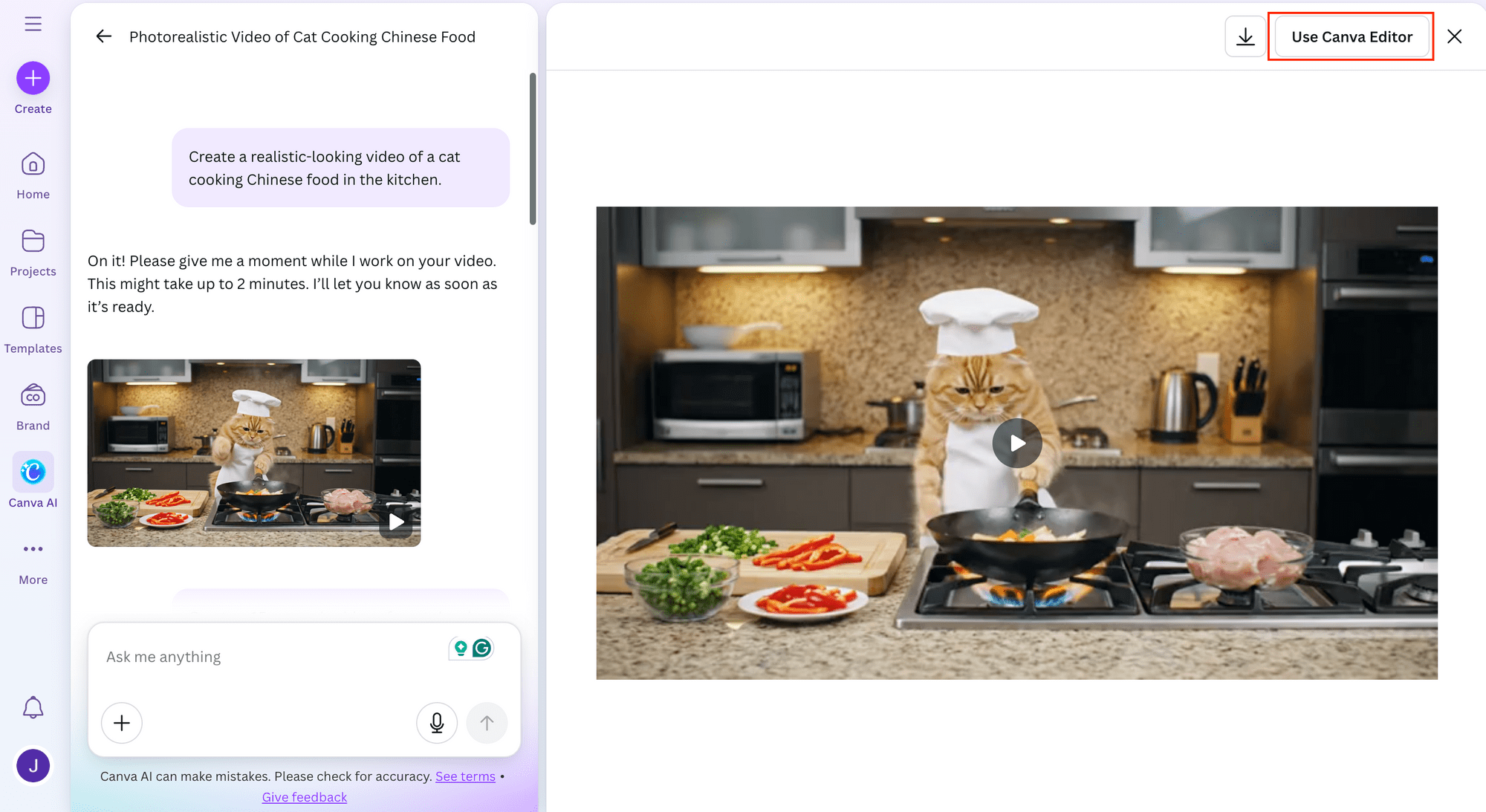
Canva will open the template editor with your AI video already inserted into the design, and you can edit your video from there:
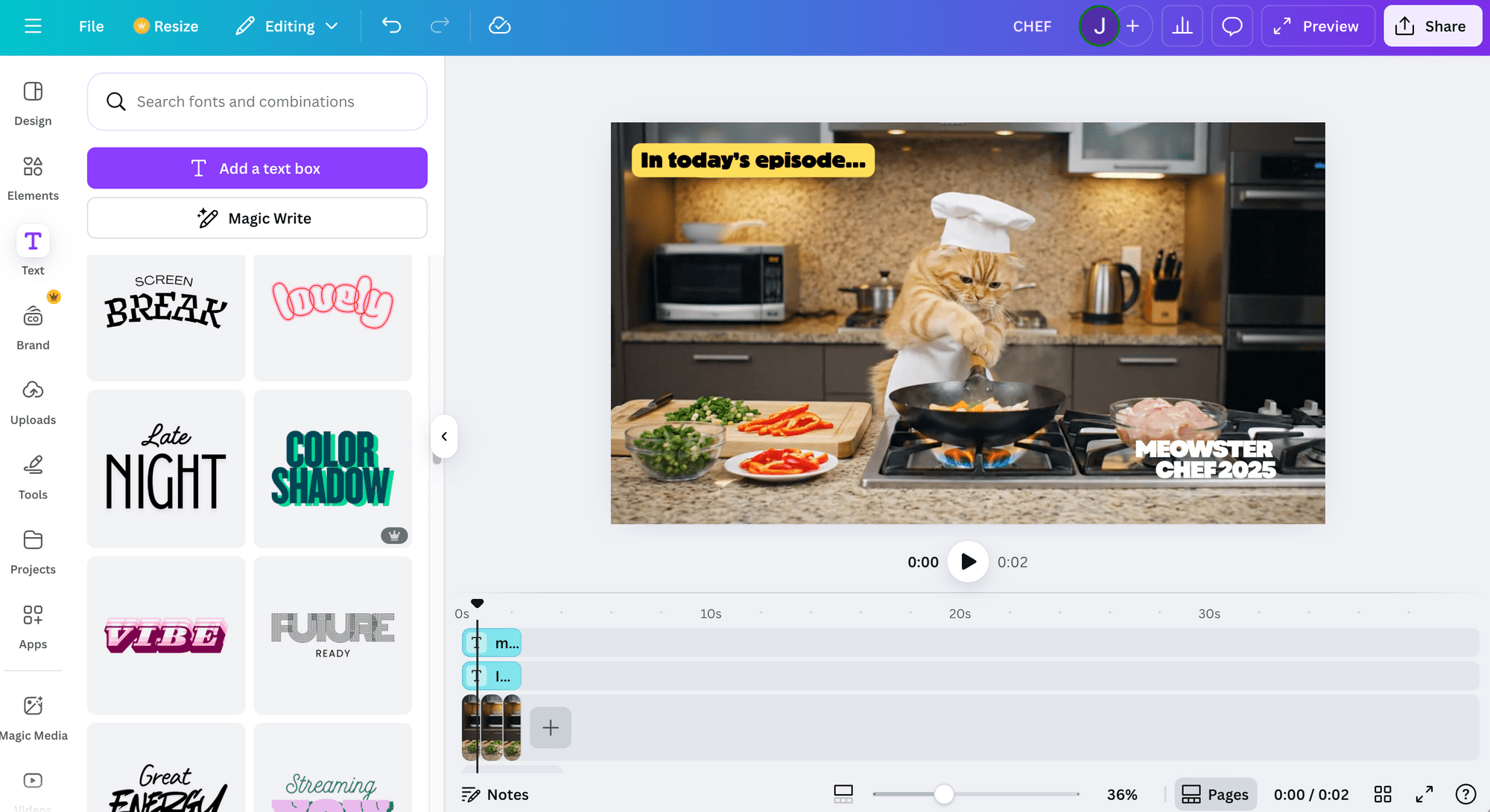
Besides these basic video editing features, the template editor is also powered by a bunch of AI tools to make the editing process even easier. We’ll go through these in the next points.
3. Magic Video
Magic Video is Canva’s AI-powered feature that helps you automatically create 60-second videos from your clips or photos. It applies dynamic templates, transitions, and music for you, but you can still replace the media, change the style or format, and even add a prompt to guide the final result.
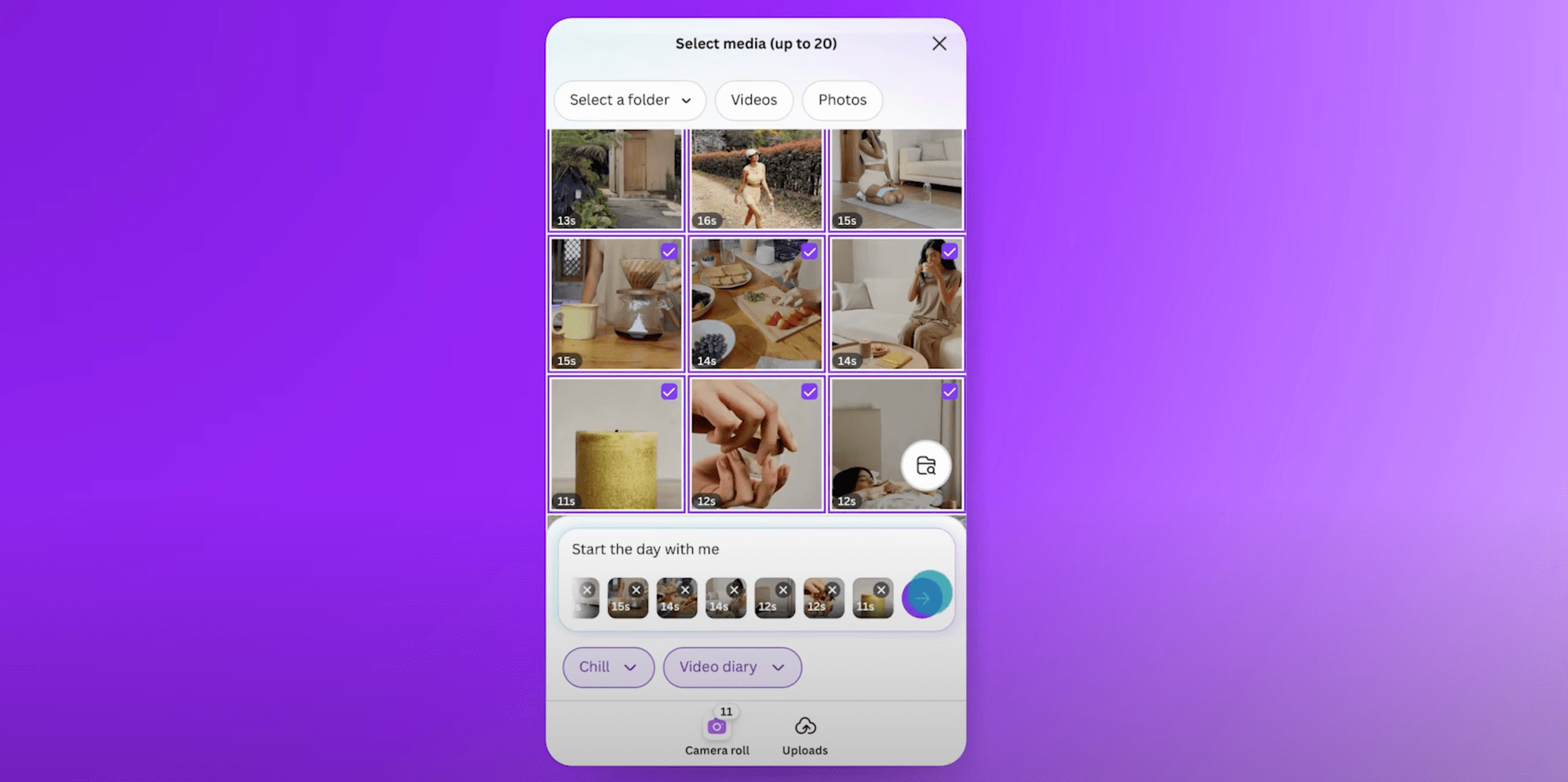
source: Canva Design School
🐱 Meow Memo: As of November 2025, this feature is only available on mobile.
4. AI Voiceover
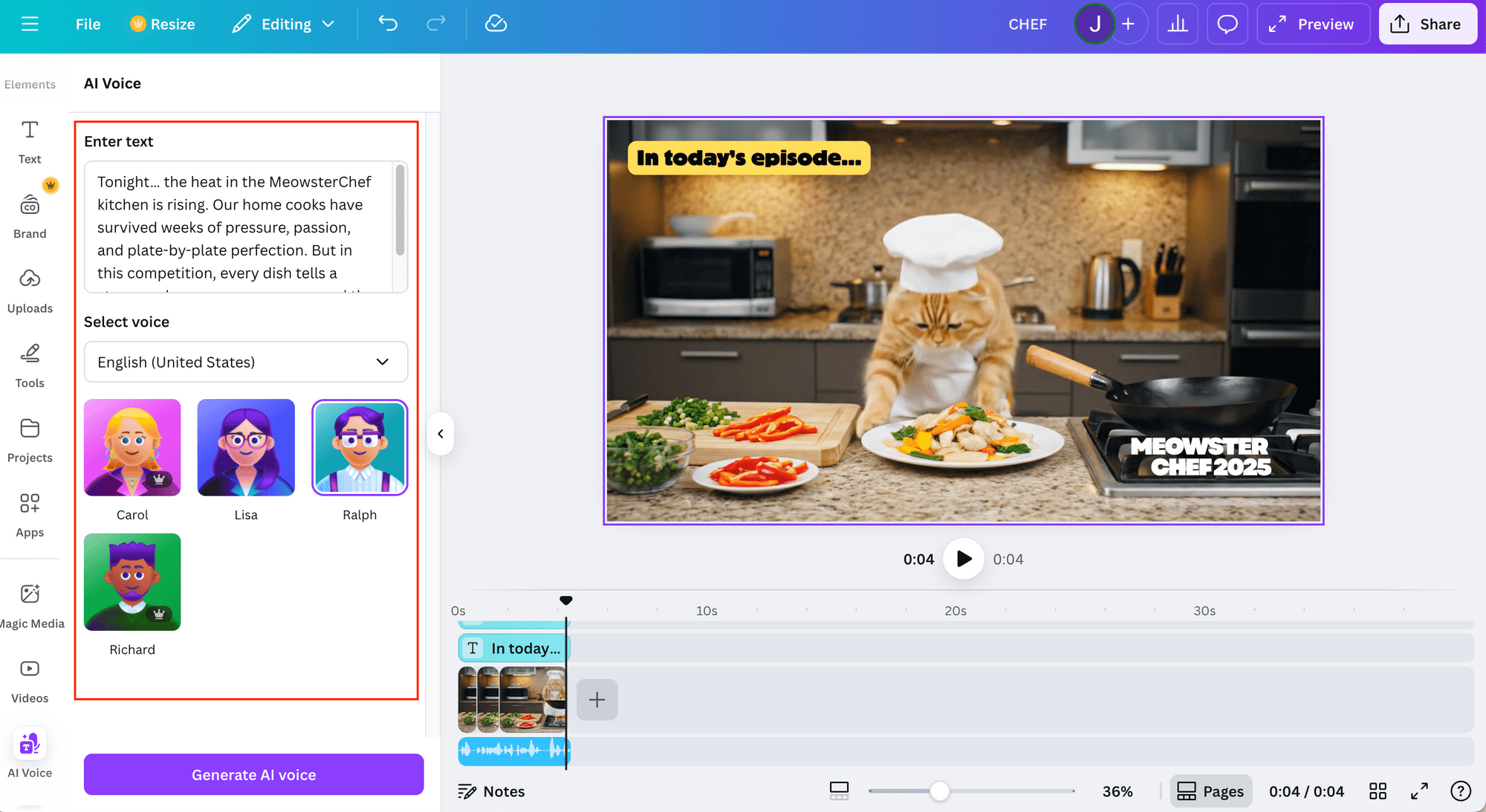
Canva’s AI Voice lets you turn text into voiceovers with different voices and accents in just one click. You can find it under the “Apps” tab—open the tab and search for “AI Voice”. Whether you’re creating a product demo, an audiobook, or a YouTube video, using this feature to add voiceover to your video makes it more engaging instantly.
5. Auto Caption
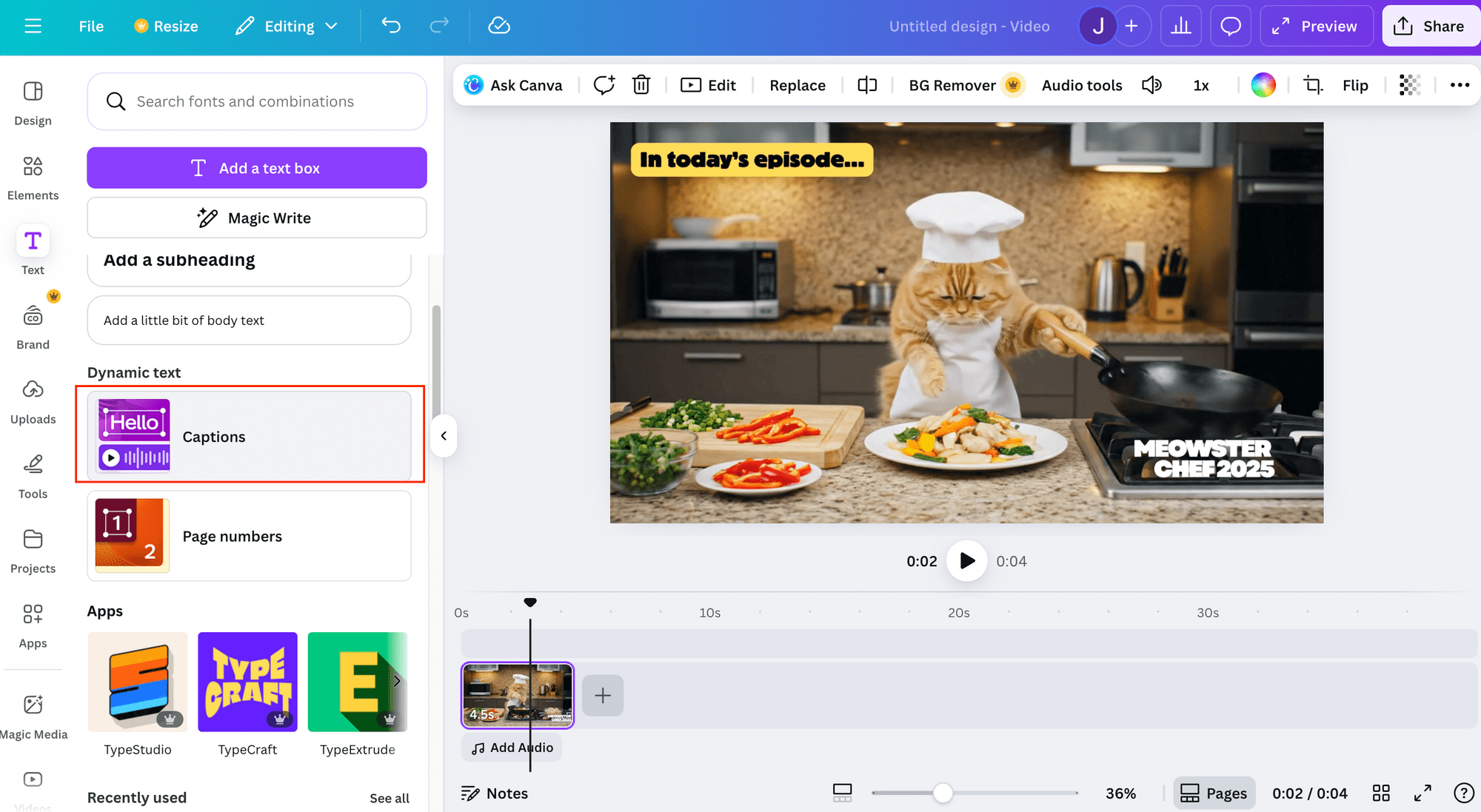
Canva also automatically generates video captions in different languages, including English, Arabic, Chinese, French, and more. To add captions to your video automatically, simply go to the “Text” tab and use the “Captions” feature:
The generated captions can be edited manually. You can tweak the text or even add animations and effects to change the overall design:
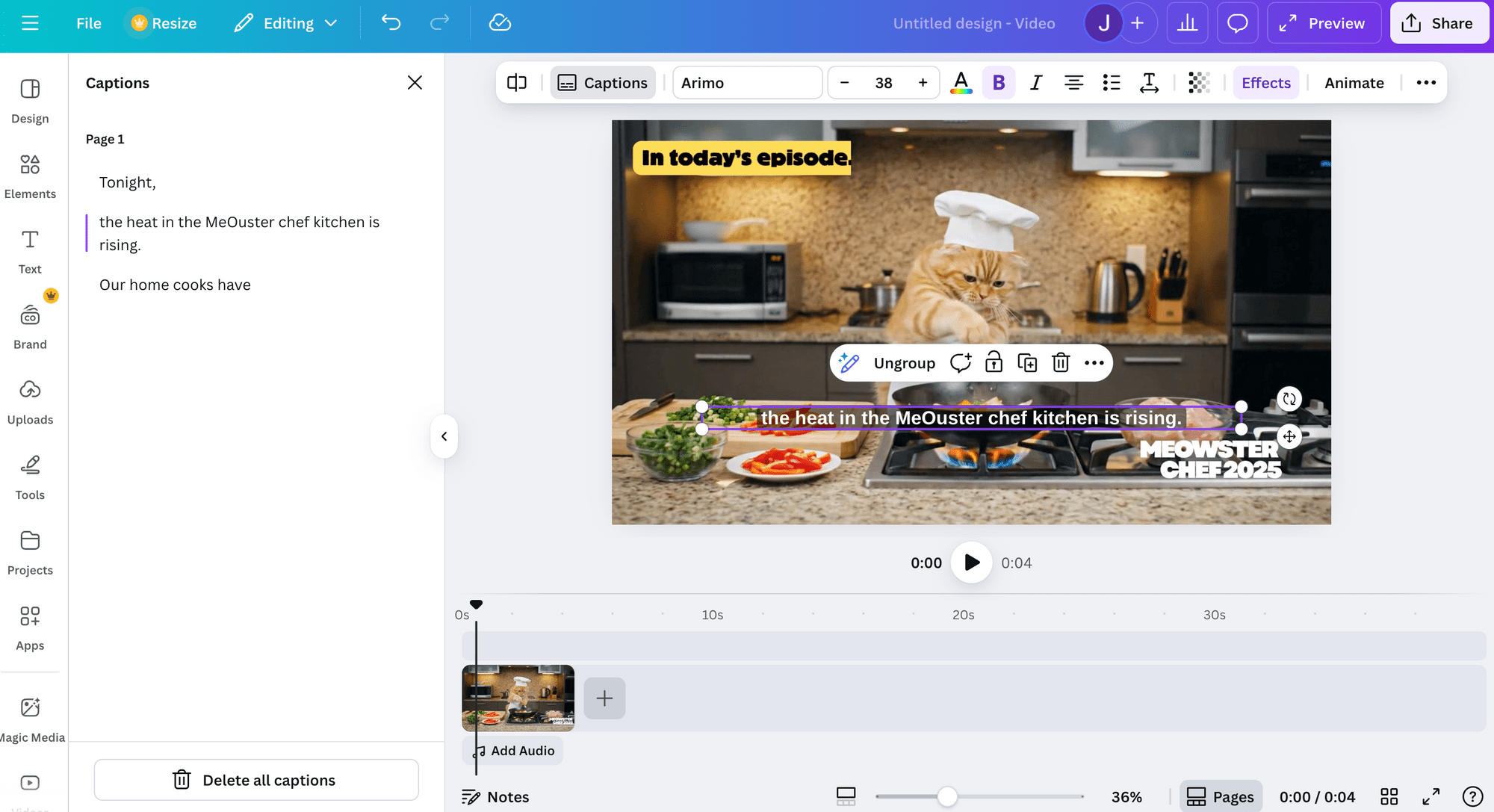
🐱 Meow Memo: The captions can also be translated into other languages!
6. Highlights
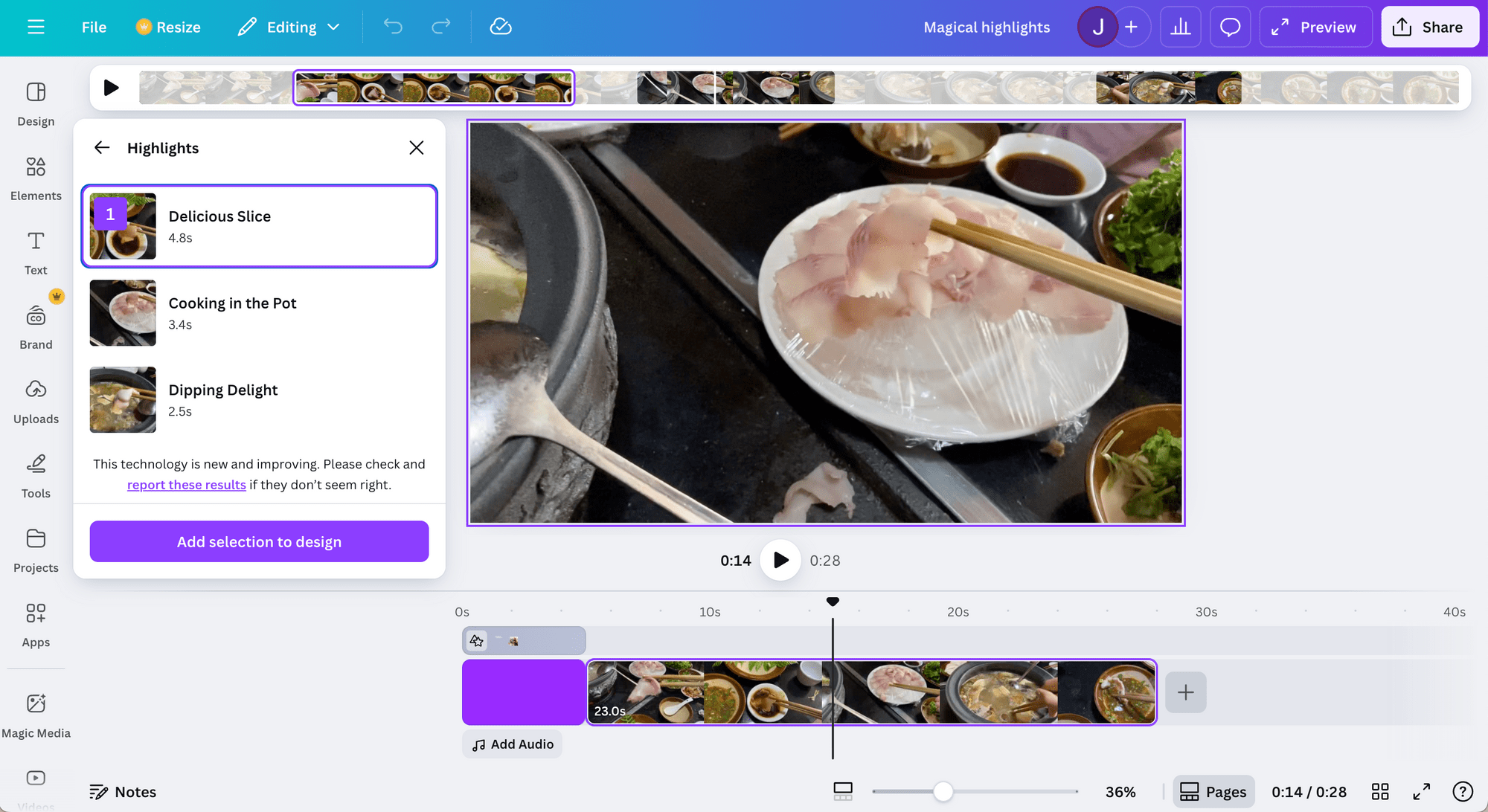
As part of Canva’s AI Magic Studio, the Highlights feature automatically picks out the most interesting moments from your video and crops them into short clips. You can then add these clips to your video timeline and add captions, transitions, and effects.
7. Other Apps via the Marketplace (e.g., AI Avatar)
You can also access features that aren’t built directly into Canva by using third-party integrations from Canva’s app marketplace. This includes AI tools like AI avatar generators and other advanced AI features:
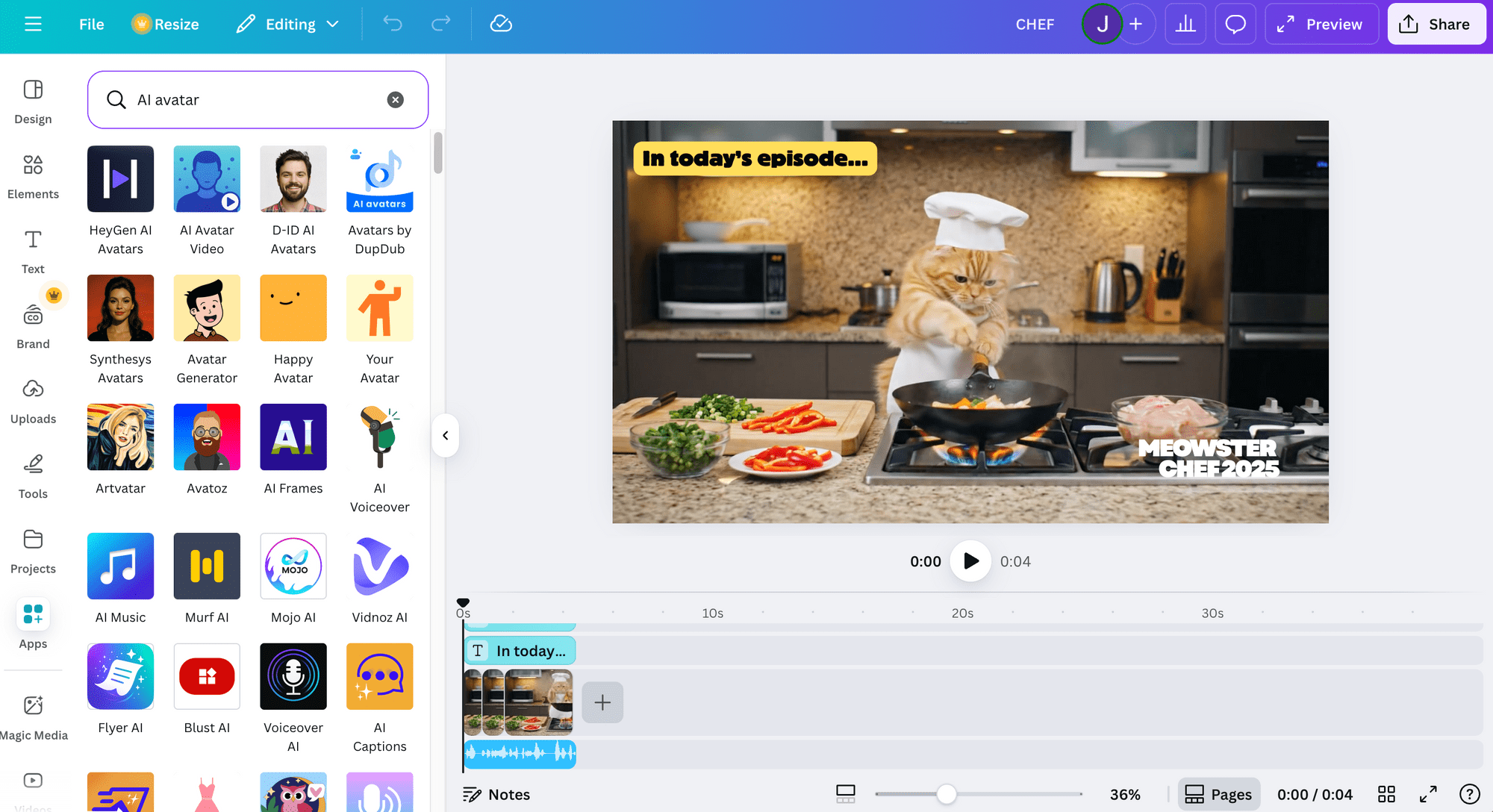
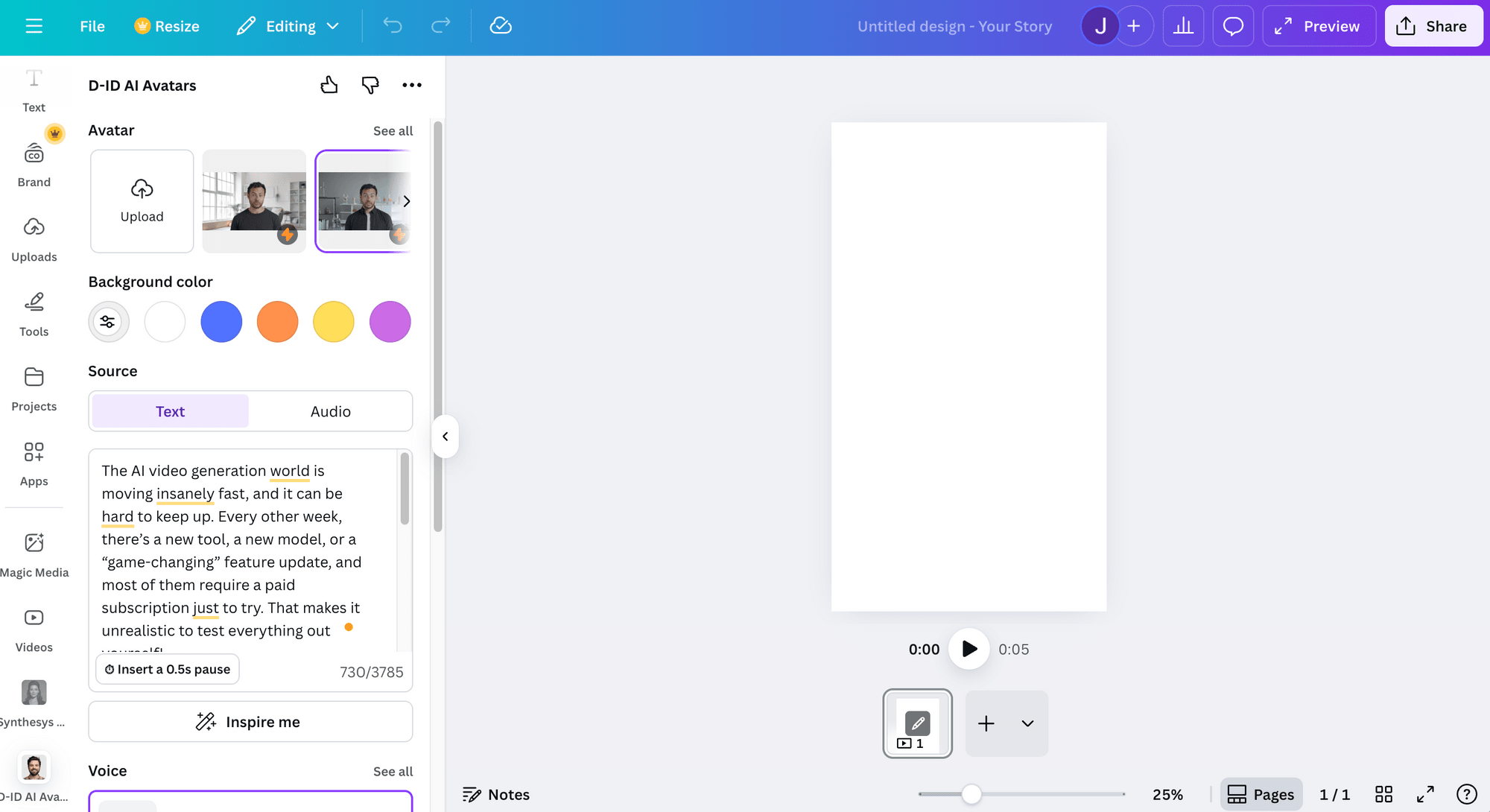
For example, you can generate a talking-head AI avatar inside Canva using the AI Avatars app by D-ID:
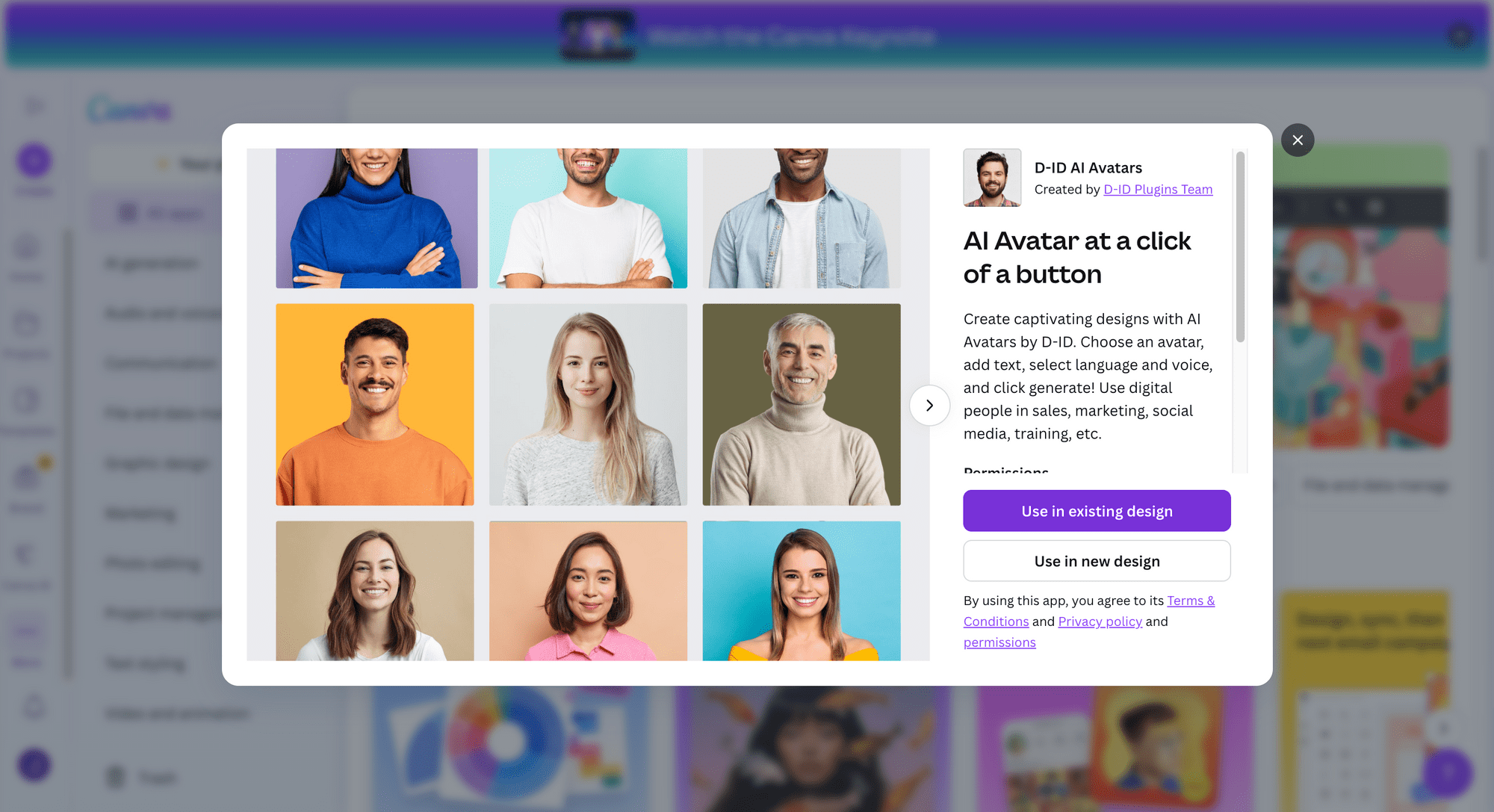
🐱 Meow Memo: You’ll need to log in to your account for that specific app before you can use the app integrations within Canva.
Canva AI Video Generator Pricing
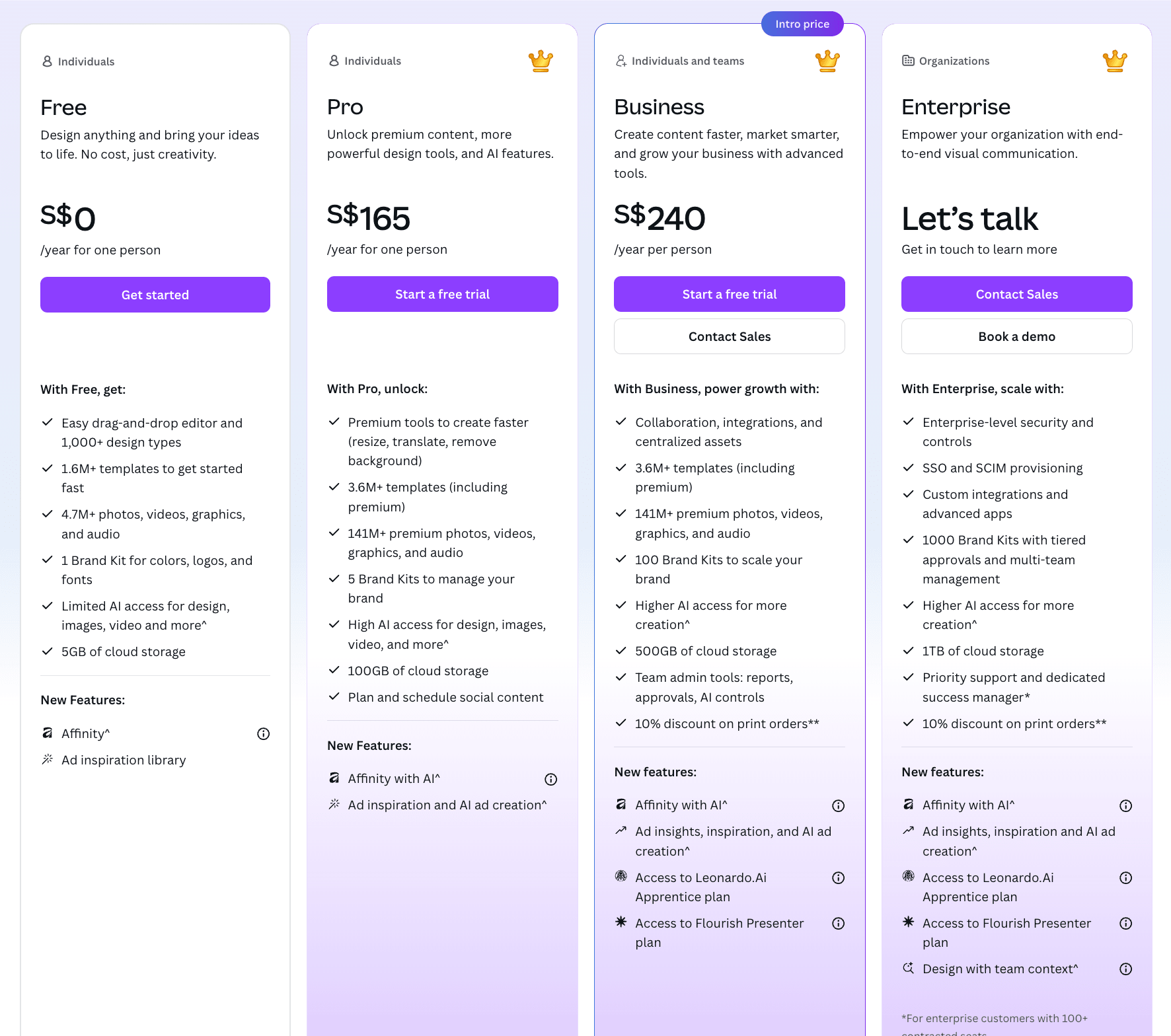
The Canva AI Video Generator and other AI features like Highlights, Translate, and Magic Video are only available for Pro, Teams, Enterprise, and Nonprofit users. However, the rest of the features mentioned in this article are available to all users.
Here’s an overview of Canva’s pricing plans as of November 2025:
Honest Review: Strengths and Weaknesses
After testing the Canva AI Video Generator extensively, here’s our honest review:
Pros
- Integrated experience - Using the Canva AI Video Generator is very convenient because you can edit the AI-generated video directly in Canva’s editor once it’s created.
- User-friendly interface - The interface is intuitive, so the learning curve is minimal, especially for existing Canva users.
- Complementary AI tools - Features like AI voiceovers, Auto Caption, and Highlights work seamlessly with the video generator, making it easy to enhance AI-generated videos.
Cons
- Short video length - The AI Video Generator currently supports videos of only up to eight seconds.
- Limited monthly generation - Even on paid plans, you can only generate up to five video clips per month.
- English-only prompts - It only accepts text prompts written in English.
Final Thoughts
The Canva AI Video Generator is simple, fast, and works seamlessly with Canva’s other features to give you a convenient all-in-one workflow. While it may not offer as many configuration options or advanced settings as some standalone AI video generators, it’s more than enough for practical, everyday content creation.
If you’re a content creator, marketer, small business owner, or someone who already uses Canva for your design work, the Canva AI Video Generator is easily one of the best options to start with. If you’d like to explore other AI video generators as well, feel free to check out these articles: